This article explains how to automatically download a file on a schedule using a PowerShell script and Windows Task Scheduler. This example downloads an XML TV guide file for Plex Media Server, but the same method can be used to download any file from a web server.
Create a PowerShell script using PowerShell ISE, Visual Studio Code, or another text editor. The following example downloads a TV guide XML file and saves it to a local folder:
$url = "http://xmltv.net/xml_files/Ballarat.xml"

$output = "C:\Program Files (x86)\Plex\Plex Media Server\ballarat.xml"

Import-Module BitsTransfer

Start-BitsTransfer -Source $url -Destination $output
Replace the URL and output path with values appropriate for your environment, then save the script as a .ps1 file.
Open Task Scheduler and create a new task.
In some environments, the task may not run correctly under an Administrator account, even with Run with highest privileges enabled. If this occurs, configure the task to run as:
NT AUTHORITY\SYSTEMCreate one or more triggers based on your requirements. For example, you may choose to run the download script daily, weekly, or at a specific time of day.
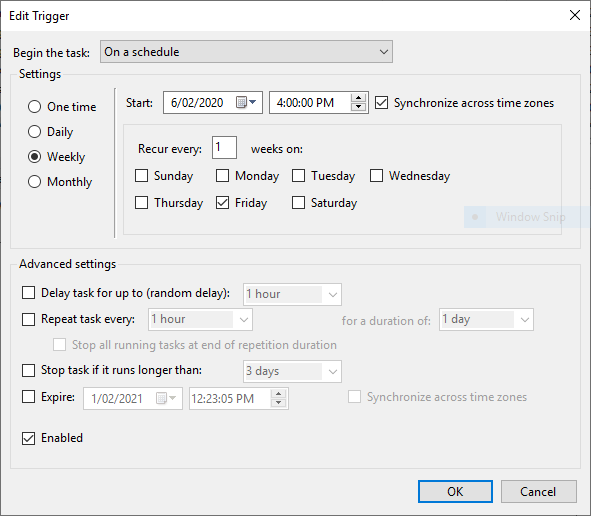
Configure the schedule that best suits your use case.
Create a new action and select Start a program.
Enter the following values:
Program/script:
powershell.exeAdd arguments:
-ExecutionPolicy Bypass -File "C:\path\to\your_script.ps1"Replace the path with the file path of your PowerShell script.
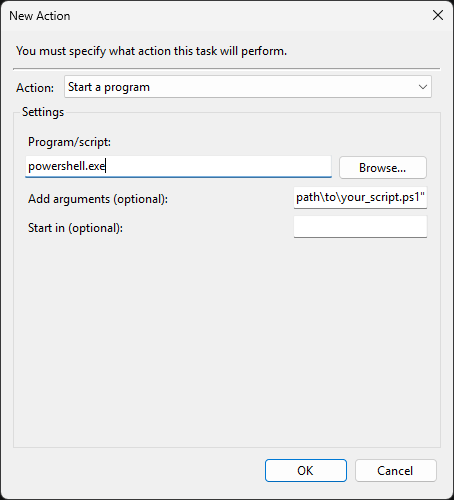
Click OK to save the action.
Configure any additional conditions and settings required for your environment.
Save the task and perform a test run. Verify that the file is downloaded successfully and that the destination file is updated as expected.
Once the task has been configured correctly, Windows will automatically download the file according to the schedule you have defined.
Date Created: Saturday, 1 February 2020, 12:08 PM